
Create an account#
Open the sign-up page and complete the form from top to bottom.
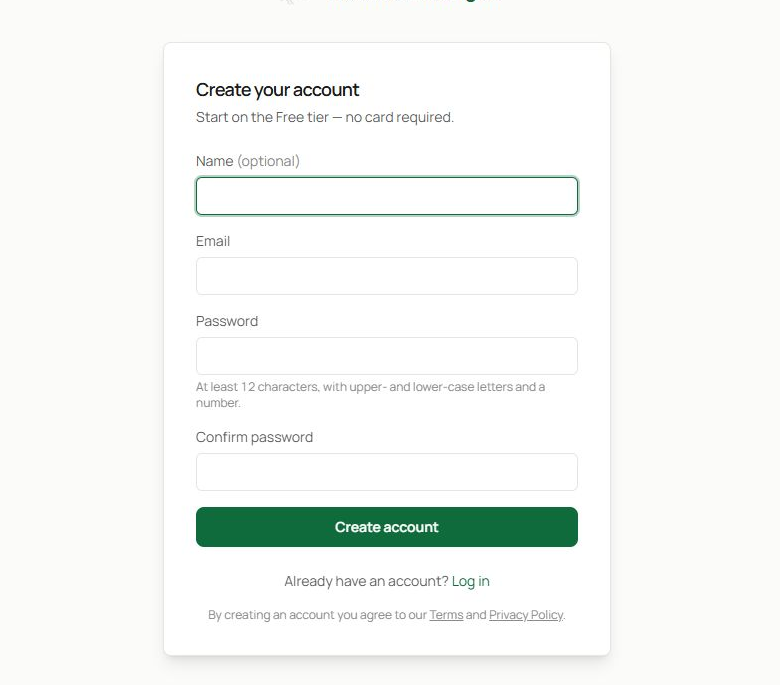
- Enter your name. This is optional, but it helps personalise your account.
- Enter the email address you want to use to sign in.
- Create and confirm a password. Follow the strength guidance shown below the password field.
- Select Create account. If the details are accepted, you can continue into the application.
The Free tier does not require a payment card. Paid features remain visibly locked until the corresponding plan is active.
Sign in#
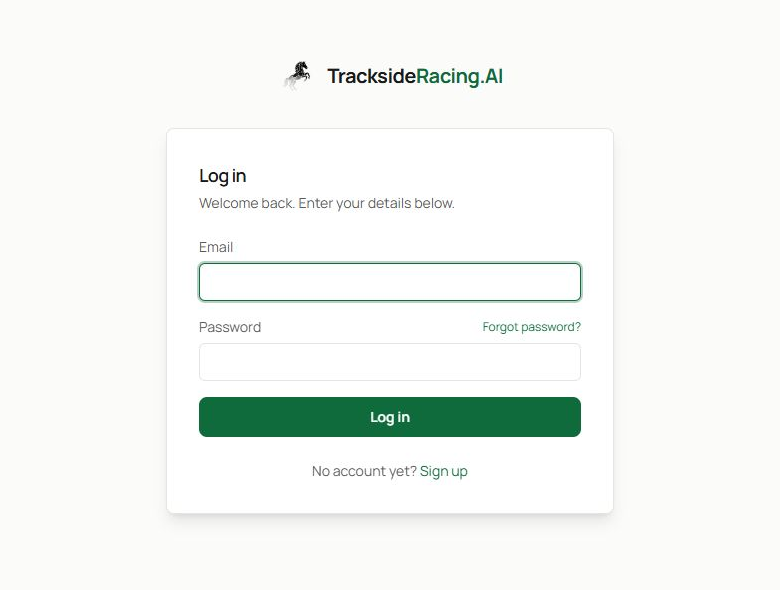
- Enter the email address linked to your account.
- Enter your password.
- Use Forgot password? if you cannot remember it. Enter your account email on the recovery page and follow the instructions sent to you.
- Select Login. New members can follow the Sign up link below the button instead.
If the page reports that your credentials are not recognised, check for typing errors first. Passwords are case-sensitive. If a reset email does not appear, check your spam folder and confirm that you used the address registered to the account.
Set your display preferences#
The controls in the top bar stay available throughout the application:
- Select Decimal or Fractional to choose how prices are shown.
- Select Light or Dark to change the colour theme.
- Use the account menu for account actions, including signing out.
Your theme choice is shared with the public TracksideRacing.AI website on the same device, so moving between the site and the application feels consistent.
Manage security#
Open Settings, then select the Security tab.
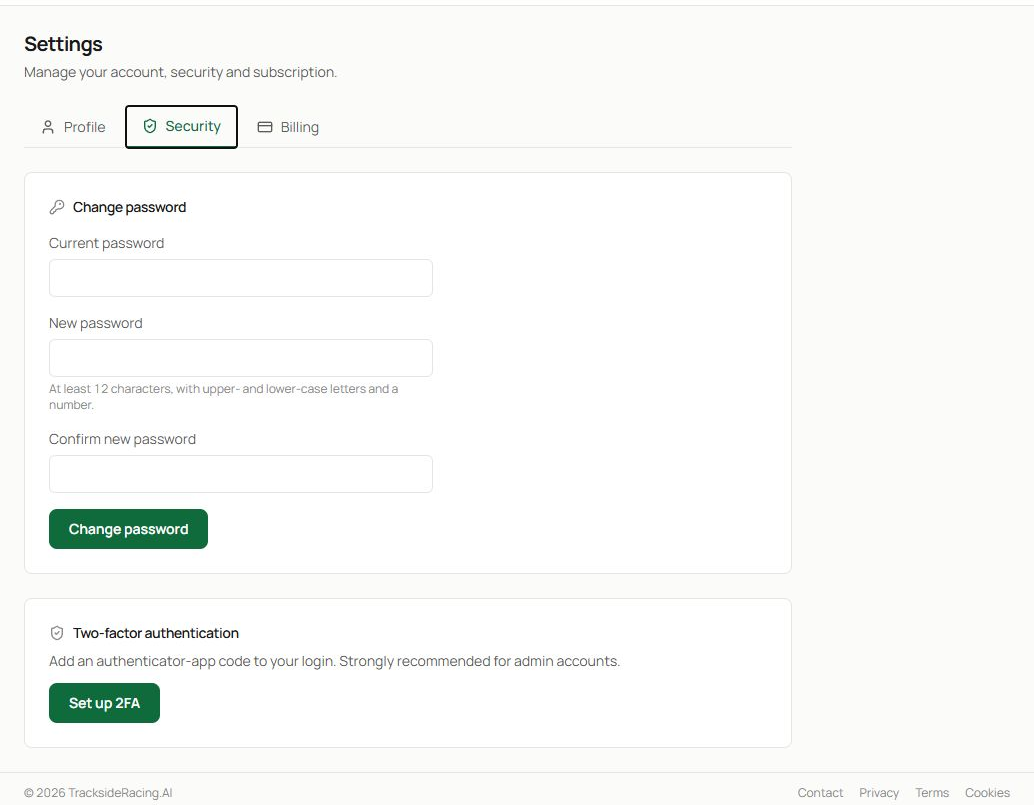
- The Settings tabs separate profile, security and billing information. Choose Security for sign-in protection.
- To change your password, enter the current password, then enter and confirm the new one. Select Change password only when all three fields are complete.
- Select Set up 2FA to add two-factor authentication. Follow the on-screen setup and store any recovery information somewhere safe.
Use a password that is unique to TracksideRacing.AI. Two-factor authentication is strongly recommended, especially if the account is used on shared or mobile devices.
Profile and billing#
The Profile tab holds your personal account details. The Billing tab shows the active plan and subscription controls available to you. If a feature is locked, check its minimum plan in the relevant guide, then use Billing to review upgrade options.
When you finish a session#
Sign out from the account menu if you are using a shared computer. On a personal device, you can remain signed in, but keep the device itself protected.
Related guides#
Continue with Dashboard for the quickest tour of the day’s racing, or Today’s Card if you already know which meeting you want to study.